Desk Visibility
Desk Visibility is an opt-in set of controls that let you see trading activity from the rest of your desk inside your own trading views, while always keeping a clear visual distinction between your own orders and positions and everyone else's.
Trading Desks are optional, user-defined groupings of Trading Accounts. They do not hold funds or execute trades. Their purpose is organizational: they let you monitor and report on related groups of Trading Accounts that share a team, strategy, region, or compliance boundary.
By default, your views show only the activity of the Trading Account you are currently viewing. Desk Visibility extends that view in two directions: across the other Trading Accounts you are authorized on, and across the other users on a Trading Account you share. Throughout, the platform keeps a clear visual distinction between your own activity and everyone else's, so an order or trade placed by a teammate is never mistaken for one of your own.
This page assumes you are familiar with how desks and Trading Accounts are structured. See Account Structure & Roles for those basics.
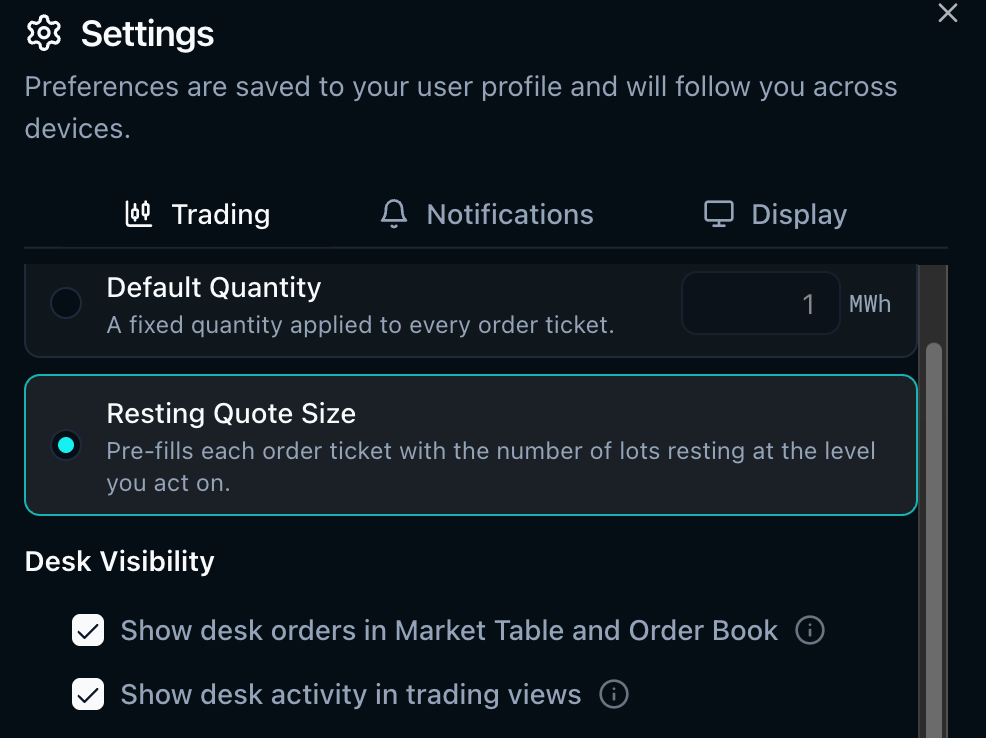
Two independent settings govern Desk Visibility, each covering a different part of the platform. You can enable either, both, or neither.
What Desk Visibility adds
- Show desk orders in the market views: highlights bid and offer cells in the Market Table when your other Trading Accounts, or Users under the same Trading Account, have orders resting, and shows your other Trading Account's working orders in a separate column in the Vertical Order Book.
- Show desk activity in trading views: includes orders, executions, and positions from your other Trading Accounts in your activity widgets, and distinguishes activity from other users on your own Trading Account. In the Order Blotter, Open Orders, and Executions widgets, each entry is labeled with the originating trader's ID. Positions and Settled Positions are labeled by Trading Account only.
Who can see what
You will only see activity for the Trading Accounts you are an Authorized User on. Belonging to the same desk as another account does not, by itself, let you see that account's activity.
For example, suppose Desk 1 contains two Trading Accounts, TA-A and TA-B. If you are authorized only on TA-A, you will not see TA-B's activity, even though both sit under the same desk. If you are then added as an Authorized User on TA-B, its activity becomes visible to you in a single consolidated view once you turn on the Desk Visibility settings, regardless of which of the two accounts you happen to be viewing at the time.
There are two distinct kinds of "other" activity Desk Visibility surfaces:
- Another Trading Account you are authorized on: activity from a separate account under your desk that you can access.
- Another user on your Trading Account: activity from a teammate who shares the same Trading Account you are viewing.
In both cases, the principle is the same: activity that does not originate from you in the Trading Account you are viewing is visually distinguished from your own, whether it comes from another Trading Account you are authorized on or from another user on your Trading Account.
Each setting is saved per User per Trading Account. If you switch the Trading Account you are viewing, you will need to re-enable the setting for the newly selected account, and other Users of the same Trading Account will need to turn on the settings themselves to enable this functionality.
Setting 1: Show desk orders in Market Table and Order Book
Desk Visibility changes only what you can see, not what you can trade against. Self-Match Prevention (SMP), which is enabled at the Trading Desk level, prevents orders from Trading Accounts on the same Trading Desk from matching one another, so a desk peer's resting order that you can now see will not trade against your own.
When enabled, this setting surfaces your desk's resting orders in the two market views: the Market Table and the Vertical Order Book (VOB).
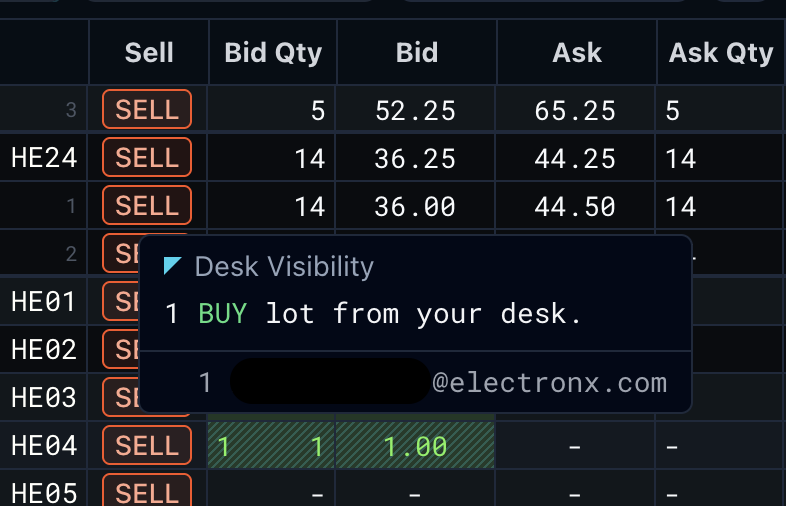
In the Market Table, the Bid Qty and Ask Qty cells are highlighted when another Trading Account you are authorized on, or another user on your Trading Account, has orders resting at that price level. The highlight simply signals that some of that quantity belongs to your desk. Hovering over a highlighted cell shows a breakdown of how many lots at that level are yours versus from a desk peer.
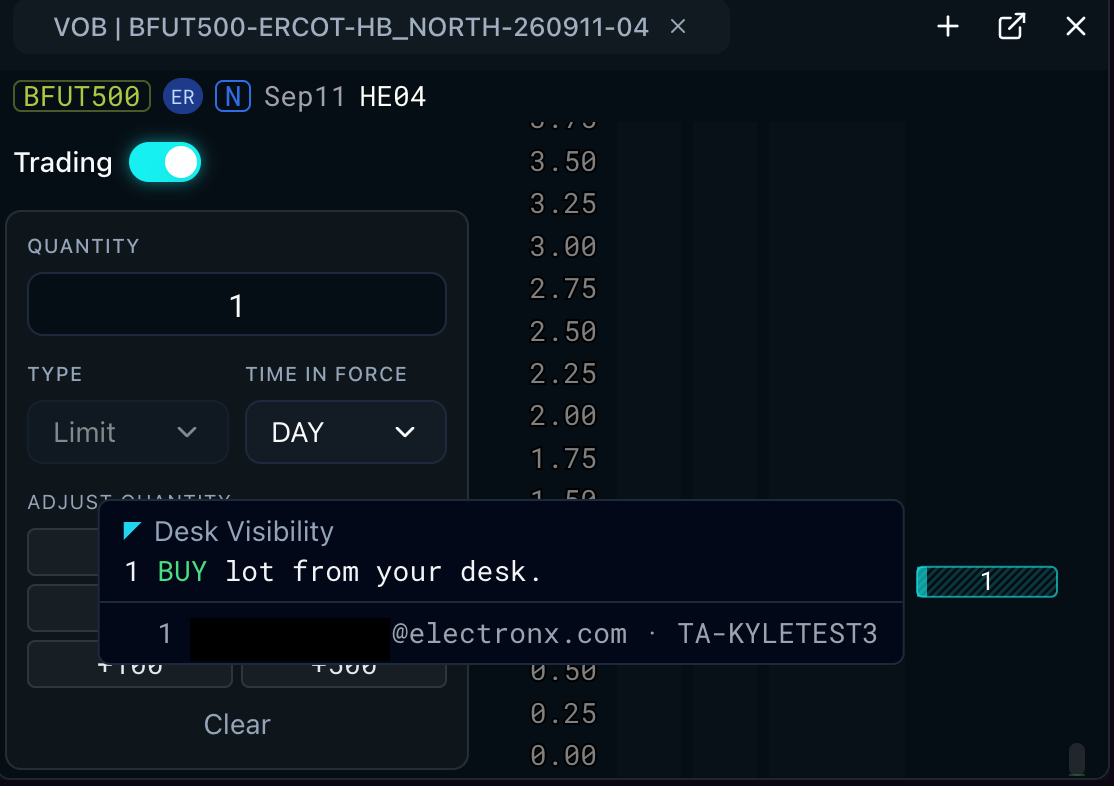
In the VOB, orders belonging to another account on your desk appear in a dedicated Working Orders column, distinct from your own resting orders. Because these are orders you cannot modify, they are shown separately from the orders you placed and can act on. Hovering over an entry identifies the originating trader and quantity. Orders from another user on your own Trading Account are not moved to this column; they stay among your own working orders, where you can still modify them.
Setting 2: Show desk activity in trading views
When enabled, this setting brings desk activity into your five activity widgets: Executions, Order Blotter, Open Orders, Positions, and Settled Positions. It applies to all five together.
With the setting on, each widget includes rows from the other Trading Accounts you are authorized on, interleaved with your own rows in the widget's normal sort order. Rows that do not originate from you in the account you are viewing are highlighted, whether they come from another Trading Account you are authorized on or from another user on your current Trading Account, so you can tell at a glance which entries are your own and which came from elsewhere on your desk.
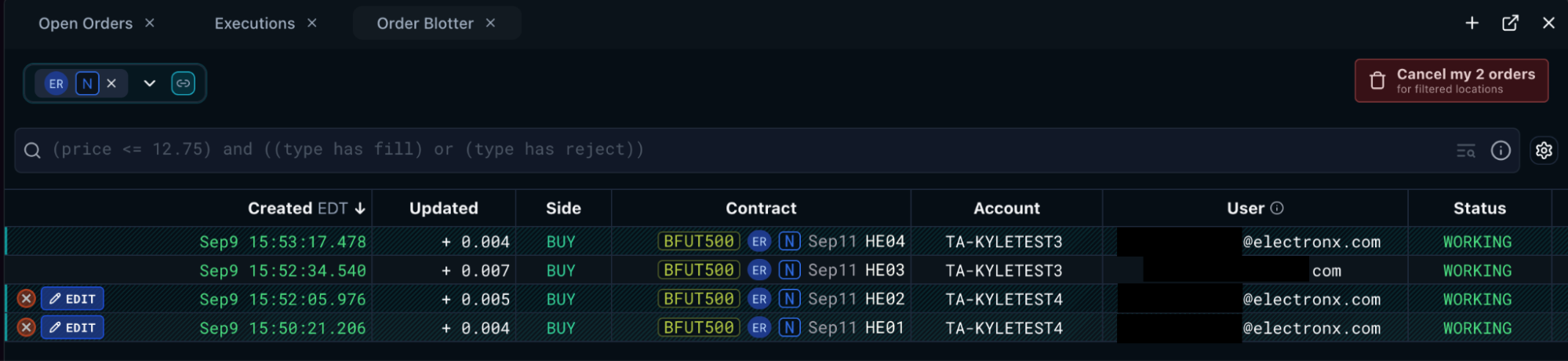
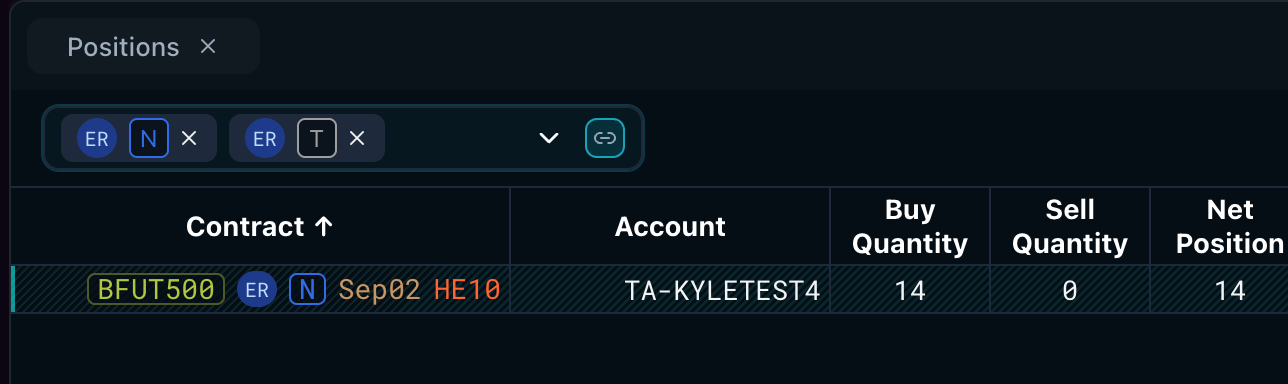
Order Blotter, Open Orders, and Executions add a User column that identifies the trader behind each row, positioned next to the Account column. In the Order Blotter and Open Orders, hovering over the User column shows a tooltip explaining that the value reflects the user who placed or most recently modified that order.
Positions and Settled Positions show each account's position in a contract as its own row; positions are not combined across accounts. Rows from a different account are highlighted so they remain distinct from your own.
Rows from another account are view-only, so no cancel or modify controls appear on them. A row from another user on your own Trading Account remains modifiable, because it belongs to the Trading Account you are viewing. A "Cancel All" action in Open Orders applies only to your own Trading Account's orders, never to another account's.
Enabling Desk Visibility
Both settings live under Settings and are off by default. Each is an independent toggle, so you can turn on market-view visibility, activity-widget visibility, or both.
For questions about configuring or using Desk Visibility, contact support@electronx.com.