Legger Widget Guide
The Legger widget is a UI-only feature, designed to let you group related derivatives contracts into a reusable workflow and then submit a plurality of orders for the constituent legs with one click. It was built with hedgers in mind, and features configuration wizards for spread, strip, and fully custom workflows. Each workflow naturally has legging risk.
ElectronX's matching engine does not currently support implied-matching or guaranteed, multi-leg user-defined instruments. There is always risk in one or more legs not being filled in the execution of trades using the Legger widget. Each order for each leg is sent independently, it is always possible that markets move before your orders execute. Legger TIF selection applies to each order independently.
Custom Workflow Wizard
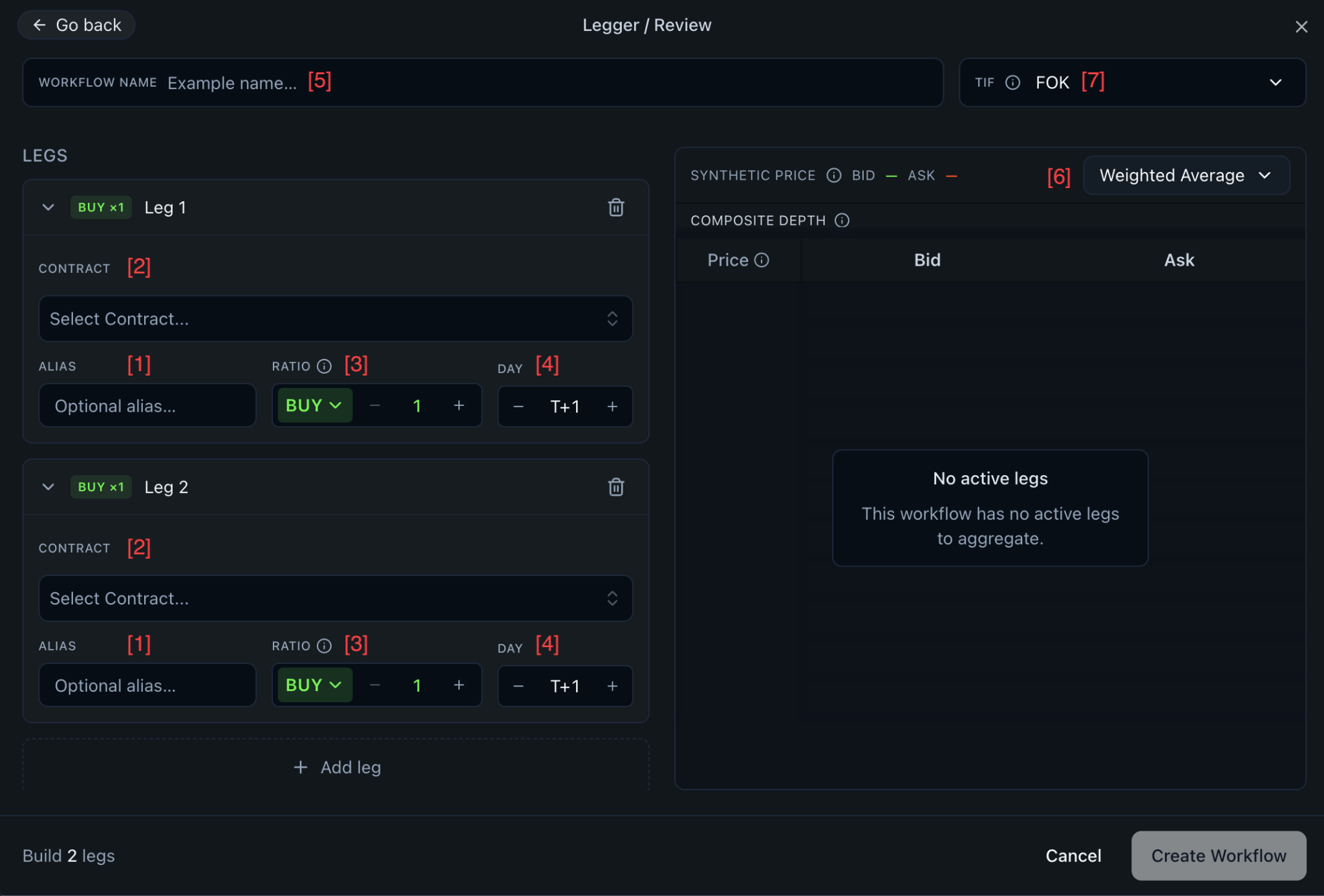
The Custom Wizard allows for full configuration over the construction of your workflow. All buttons and dials are exposed, with tool tips available for a number of parameters.
ALIAS— a user-specified string used as shorthand for a specific leg in a workflow.CONTRACT— an exchange-listed contract, selectable as a tradable leg.RATIO— a dropdown menu and unsigned integer representing the relative quantity of contracts that will be entered per workflow unit.DAY— a session-relative date pointer for a specific contract, or a calendar date for a non relative-time contract.WORKFLOW NAME— a user-specified string identifying the workflow.MODE— the pricing mode applied to the representation of available liquidity for the workflow, eitherSumorWeighted Average.TIF— the time in force instruction applied to each leg order.
Filtering and selecting contracts
With the full suite of customization at your disposal, two toggles in the filtration and selection of contracts make our wide selection of unique instruments easier to evaluate.
Liquidfilters searchable contracts down to those with at least one live order in the order book.Relativeadjusts the display of tradable contracts to their temporal position relative to the current day.T+0refers to contracts that expire on the current day,T+1to contracts that expire on the following calendar day, and so on. Contracts on ElectronX are tradable up to five days from the current session (T+5).
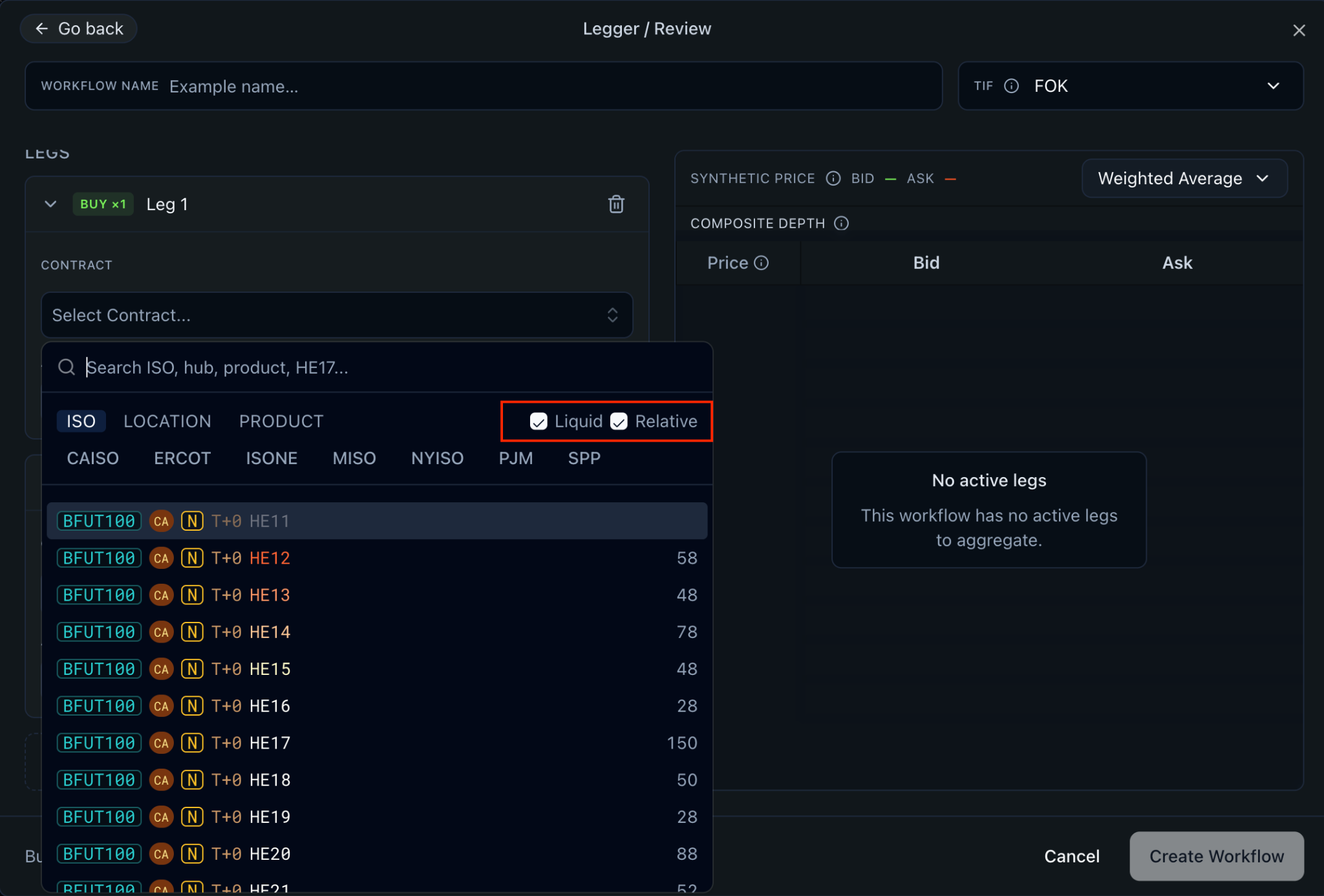
Given the short duration of contracts on ElectronX, the Relative toggle not only adjusts the display of tradable contracts, it acts as a logical pointer to contracts expiring at a point in time relative to the current session. Rather than needing to roll contracts every few days as they expire, relative-date contracts in the Legger always point at the current or forward-session contract type, ISO, location, and hour ending relative to the current trading date.
Once a contract has been selected, the DAY parameter reflects the relative session.
If you use either the Spread or the Strip Wizard, you are still shown the full customization interface as an intermediate window before saving the workflow, so you can validate the configurations or make other adjustments.
Spread Workflow Wizard
The Spread Wizard facilitates the construction of simple two-legged spreads consisting of a front or long leg and a back or short leg.
Long leg— contract type (BFUT100,BOPT, and so on), ISO, location, session-relative expiration date, and hour ending, serving as the front or buying leg of the spread.Short leg— the same fields, serving as the back or selling leg of the spread.
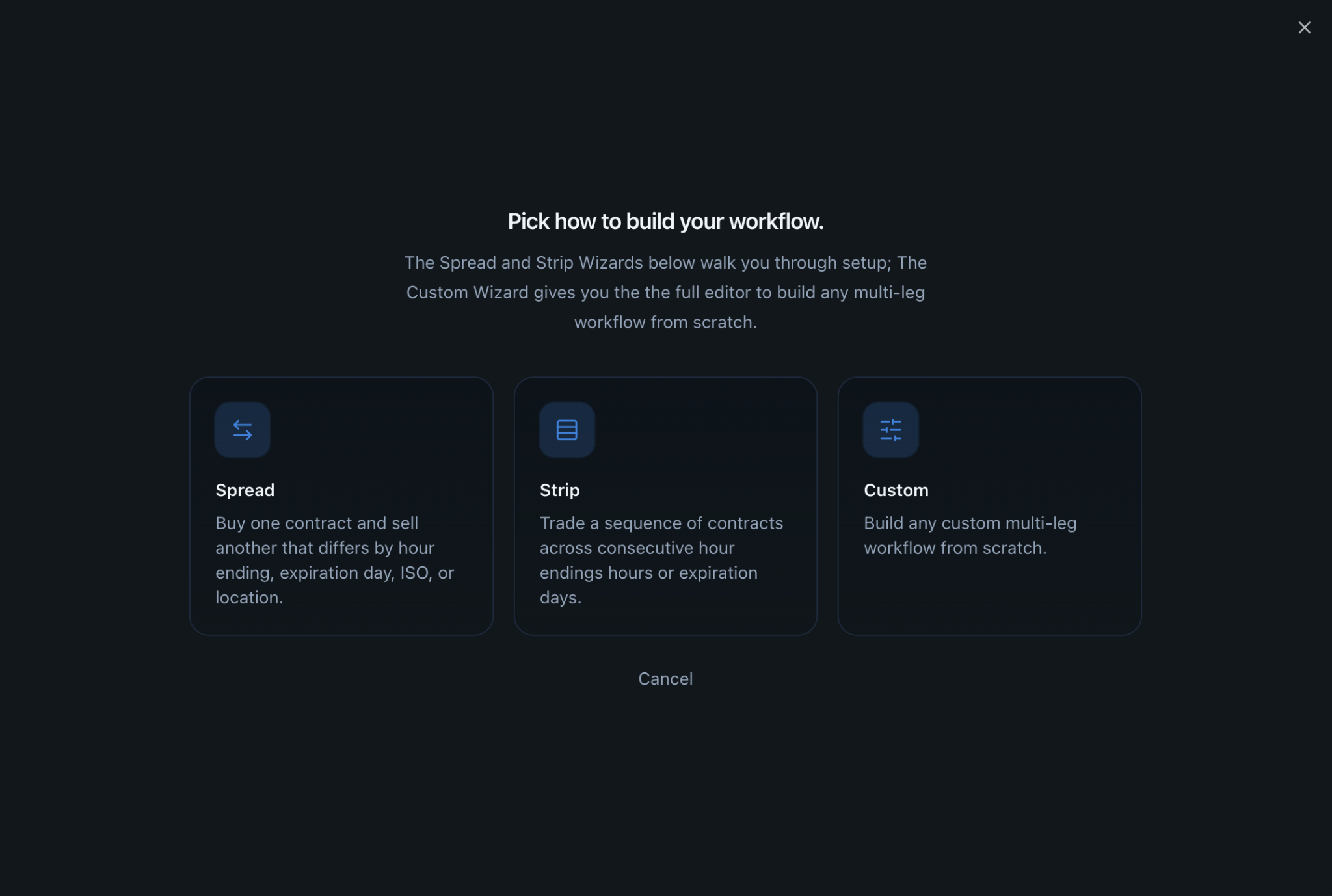
To use the wizard, click the toggle for the long or front leg. After selecting a front leg, the wizard lets you select a related back leg based on a differing hour ending, day, location, or ISO and location pair from the leg you chose. Once both legs are selected, you are directed to review the workflow.
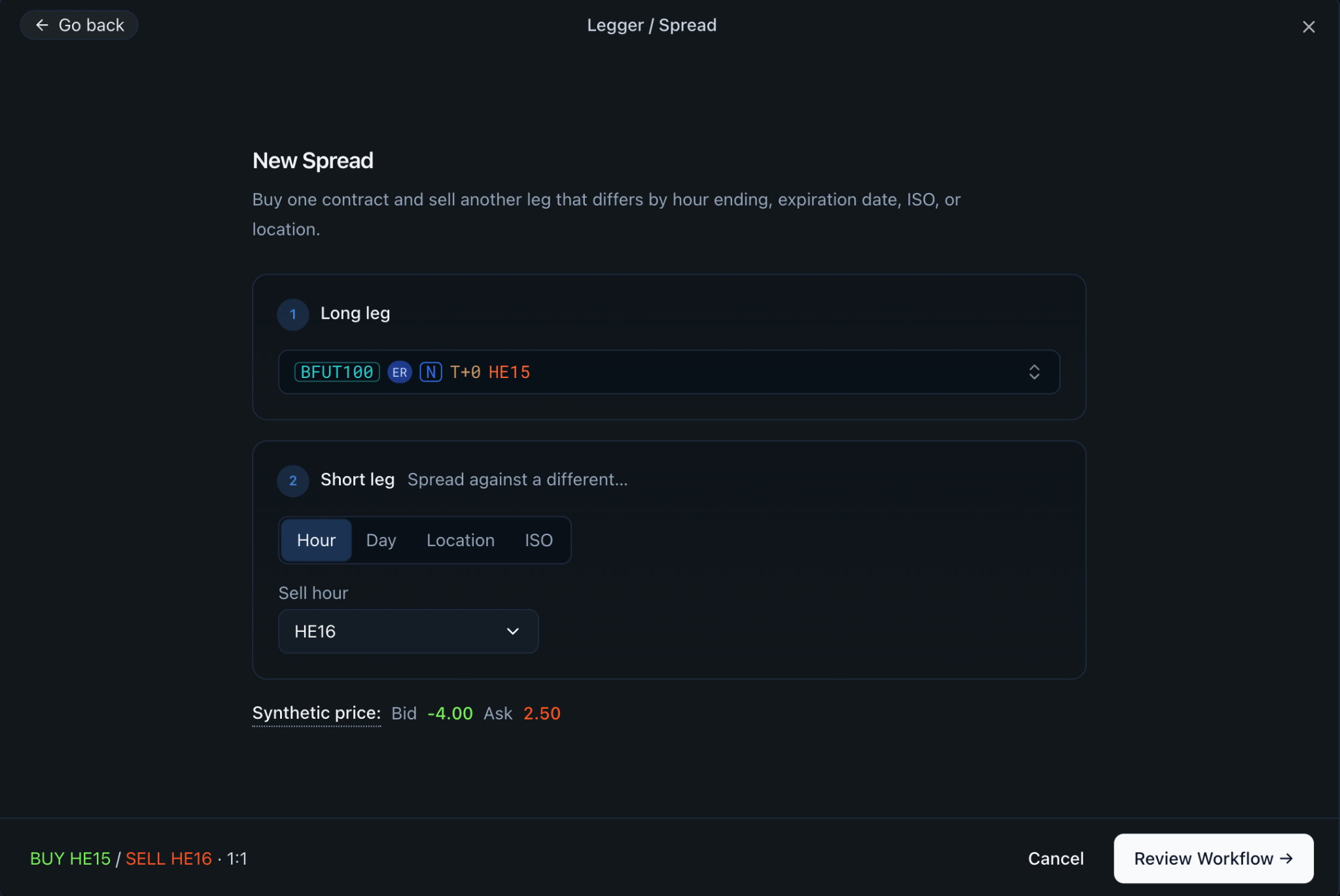
Workflows constructed using the Spread Wizard use the Sum pricing mode by default, with ratios of 1x for the front leg and -1x for the back leg. Should you wish to add more legs to a spread or adjust the ratios, you can do so in the full customization window. Buying the front leg and selling the back leg at the default ratios, the spread price is the offer of the front leg minus the bid of the back leg.
Strip Workflow Wizard
For traders who want to execute trades across a plurality of successive legs, the Strip Wizard simplifies the creation of workflows across either sequences of hours or days.
Base contract— contract type, ISO, location, session-relative expiration date, and hour ending around which to organize the tradable strip.Sweep method— the dimension of expiration across which the synthetic strip is organized: hour endings of the same session, or relative sessions.Side— the trade direction for all legs.
Build the workflow by selecting a base contract, the sweep parameters, and a side. If you configure all legs to BUY, then buying a workflow buys each leg and selling a workflow sells each leg. If you configure all legs to SELL, then buying the workflow sells each leg, and vice versa.
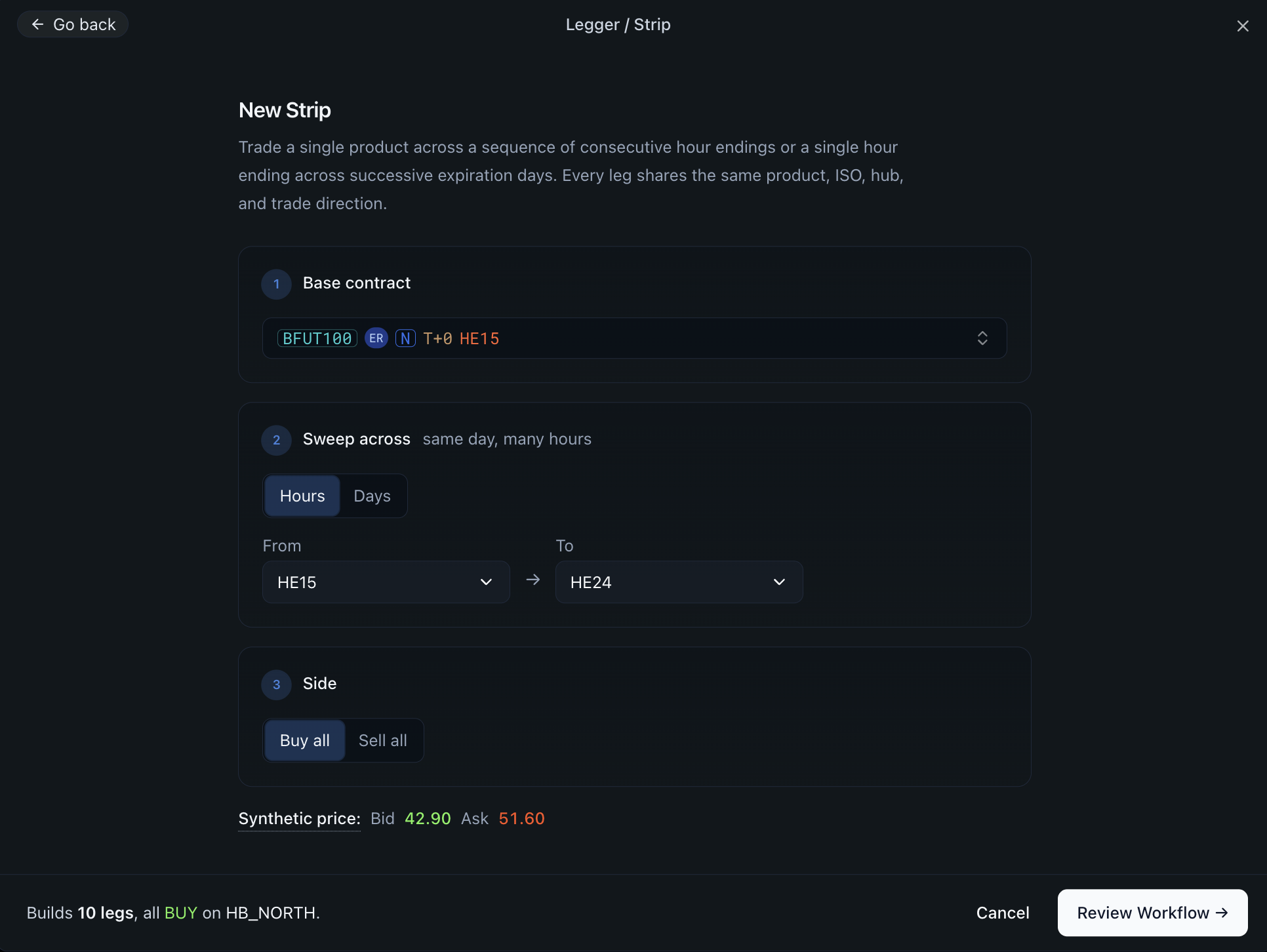
Once the parameters have been configured, the synthetic best bid and best offer price for the workflow is displayed at the bottom of the page, where available.
Pricing modes
The Legger offers two pricing modes, which relate the price of a tradable workflow to the constituent prices of its legs.
Sum— the linear combination of the prices and ratios of each leg.Weighted Average— the linear combination of the prices and ratios of each leg, divided by the sum of the absolute ratios.
Given the Legger is an aggressive execution tool, a positive ratio for a leg, corresponding to buying the leg, uses resting offers as the prices available to construct spread bids. A negative ratio, corresponding to selling a leg, uses resting bid prices to construct spread offers.
Using the wizard to configure strip workflows, pricing defaults to the Weighted Average mode. Intuitively, using this pricing mode displays the quantity-weighted or ratio-weighted average price for each leg in the workflow. If you were to buy a five hour-ending strip with a 1x ratio for each constituent leg, the quoted prices for the entire workflow would be the simple average of all five leg bids and offers, depending on the side of the market.
Execution window
Mode— the pricing mode applied to the representation of available liquidity for the aggregate workflow.TIF— the time in force instruction applied to each leg order when entering a workflow trade.Quantity— an unsigned integer for the number of units of synthetic workflow orders to be submitted to the exchange.
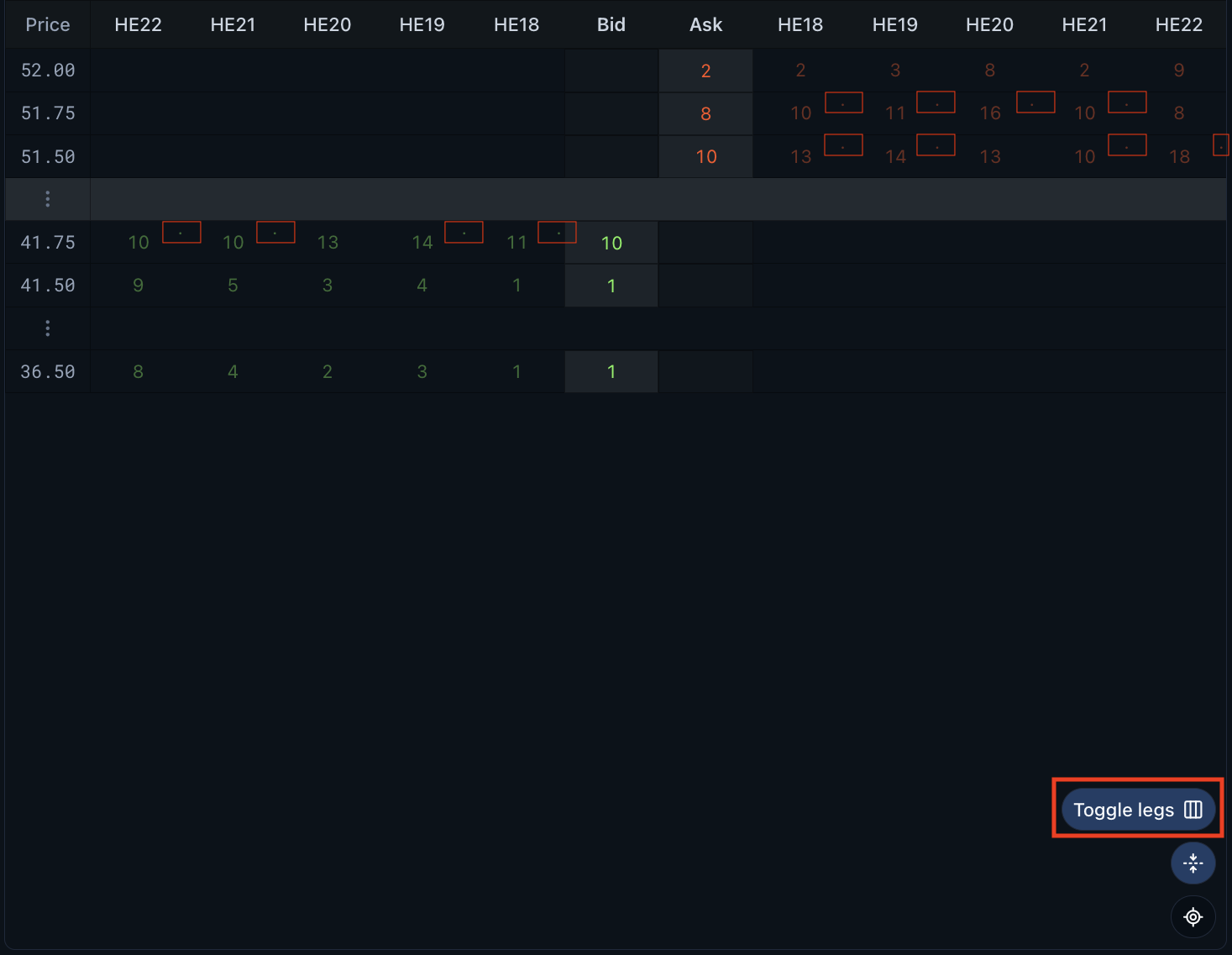
Toggle legs button reveals per-leg liquidity.Reading individual leg liquidity
Our Synthetic Price calculation rounds the weighted average price to the worse penny — up for offers and down for bids — so in practice traders will often experience price improvement from the displayed workflow price. That rounding adds a wrinkle to the display of individual leg liquidity: orders on multiple price levels for an individual leg can contribute to the quantity available at multiple workflow bids or offers.
To display these individual leg quantities accurately in the Toggle legs view of the Composite Depth table, cells of displayed leg liquidity that are composed of two or more levels of liquidity for the individual leg carry a small marker. Hovering over a cell shows a tool tip listing the individual leg prices and quantities into which the Legger would attempt to aggress, should you choose to sweep all of the displayed liquidity at that specific synthetic bid or offer. Where multiple leg levels contribute to multiple synthetic workflow levels, levels of leg liquidity are binned to the best price they contribute to and are not double counted at a deeper price level.
In the example below, the $51.50 synthetic best offer is shown for 9 lots, the minimum number of orders for an individual leg that can contribute to achieving the rounded weighted average price. The Composite Depth table reports that leg HE21 has 10 lots at various prices that would allow for the execution of the workflow at the synthetic offer price, given the resting liquidity of the other orders. The tool tip shows that if you were to attempt to buy all 9, the Legger would aggress into leg HE21 for 9 contracts, with 5 priced at $69.75 and 4 at $70.00. There are 5 lots available at $70.00 which would still allow for execution of the workflow at the synthetic price of $51.50, but only 4 would actually be traded to achieve that price given the fewer orders available in HE22 (9 = 5 + 4). The VOB will still display 10 lots available for the best offer.

The tool tip below covers the liquidity at HE21 for the $51.75 synthetic offer. The one lot at $70.00 for HE21 that would not be eligible for execution at the synthetic price of $51.50 is counted towards displayed liquidity for $51.75. Those other 4 lots are still available for HE21 at $70.00, but they are binned to the better price they can achieve and are not double counted in the deeper synthetic offer.

Notifications
As executions using the Legger result in individual order submissions, ElectronX's standard suite of toast tab pop-ups and notification sounds will alert you to all entered and executed orders.
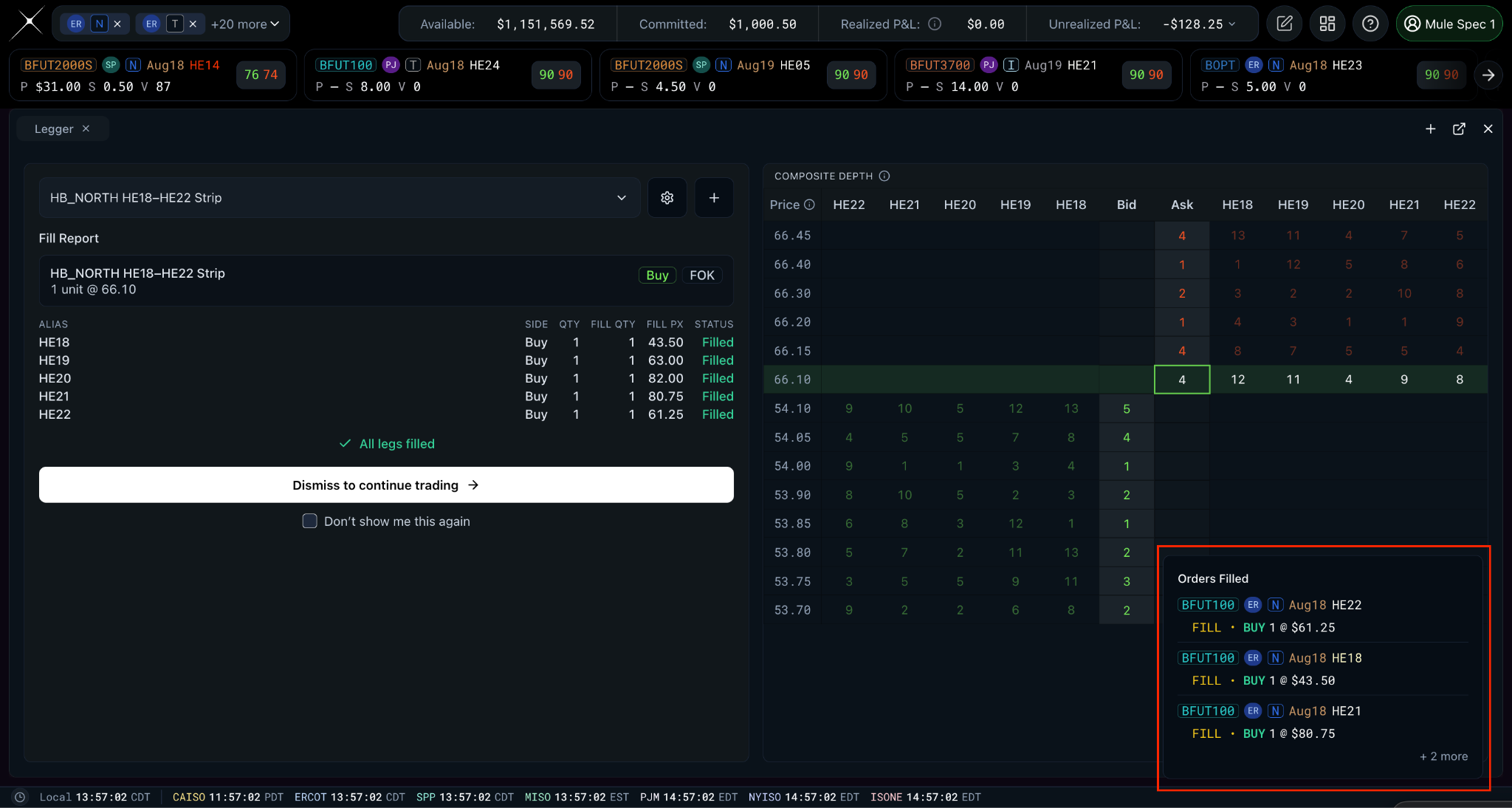
Orders Filled toast for the individual leg fills.Due to the plurality of orders submitted as a result of trading workflows of multiple legs, orders submitted from a single click into a Legger VOB are identified in order-tracking widgets like the Order Blotter and the Executions widget. Orders executed via the Legger are also identified with the Legger widget's logo in the Created column in the Order Blotter.
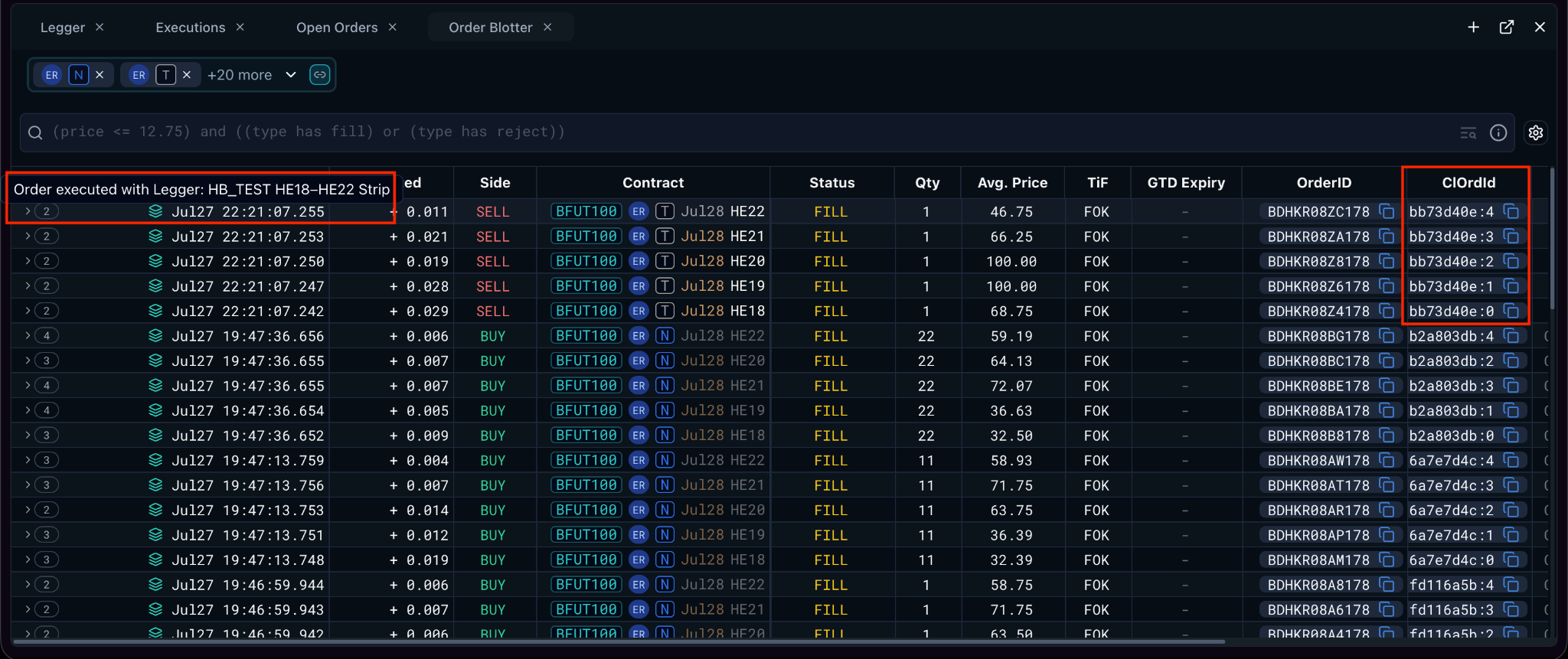
Created column.For further assistance, comments, or concerns regarding configuring workflows, executing trades, or otherwise using the Legger widget, contact support@electronx.com.