Navigating the Platform
This video shows the interface before the October 2026 redesign, so some screens and controls may now look or work differently. The screenshots below show the redesigned interface.
The ElectronX interface is built around a few core areas. This guide gives you a quick map of where everything lives so nothing catches you off guard once you are logged in.
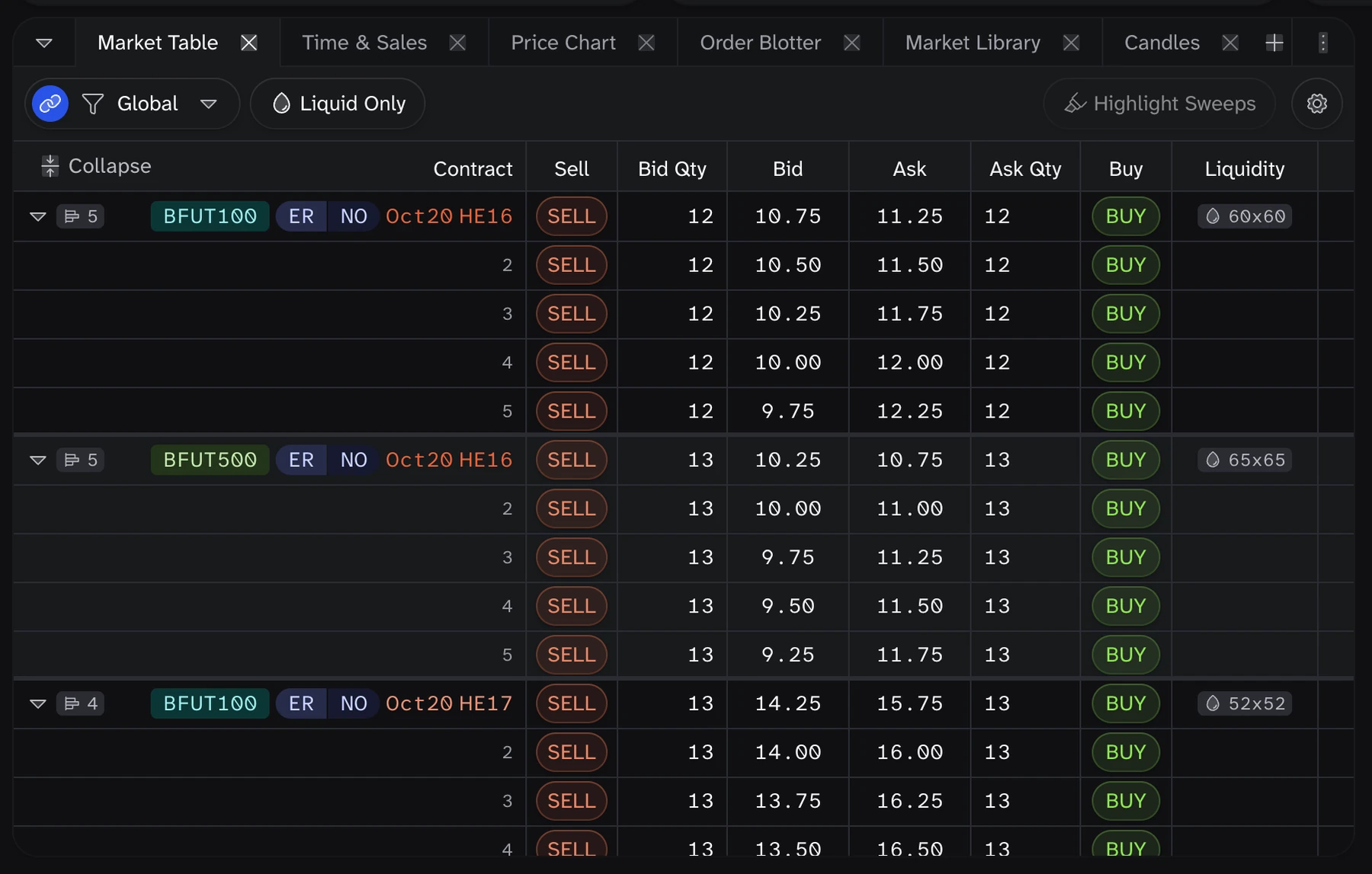
Market table
The Market table view is where you find all available contracts. You can filter by ISO, hub, and product type. To start an order, click buy or sell on a contract to open an Order Entry ticket. See Order Book Trading 101 for what every column means, how the bid and ask sides fit together, and how to expand a row to see book depth. See Global filter to choose which contracts the Market table shows.
Global filter
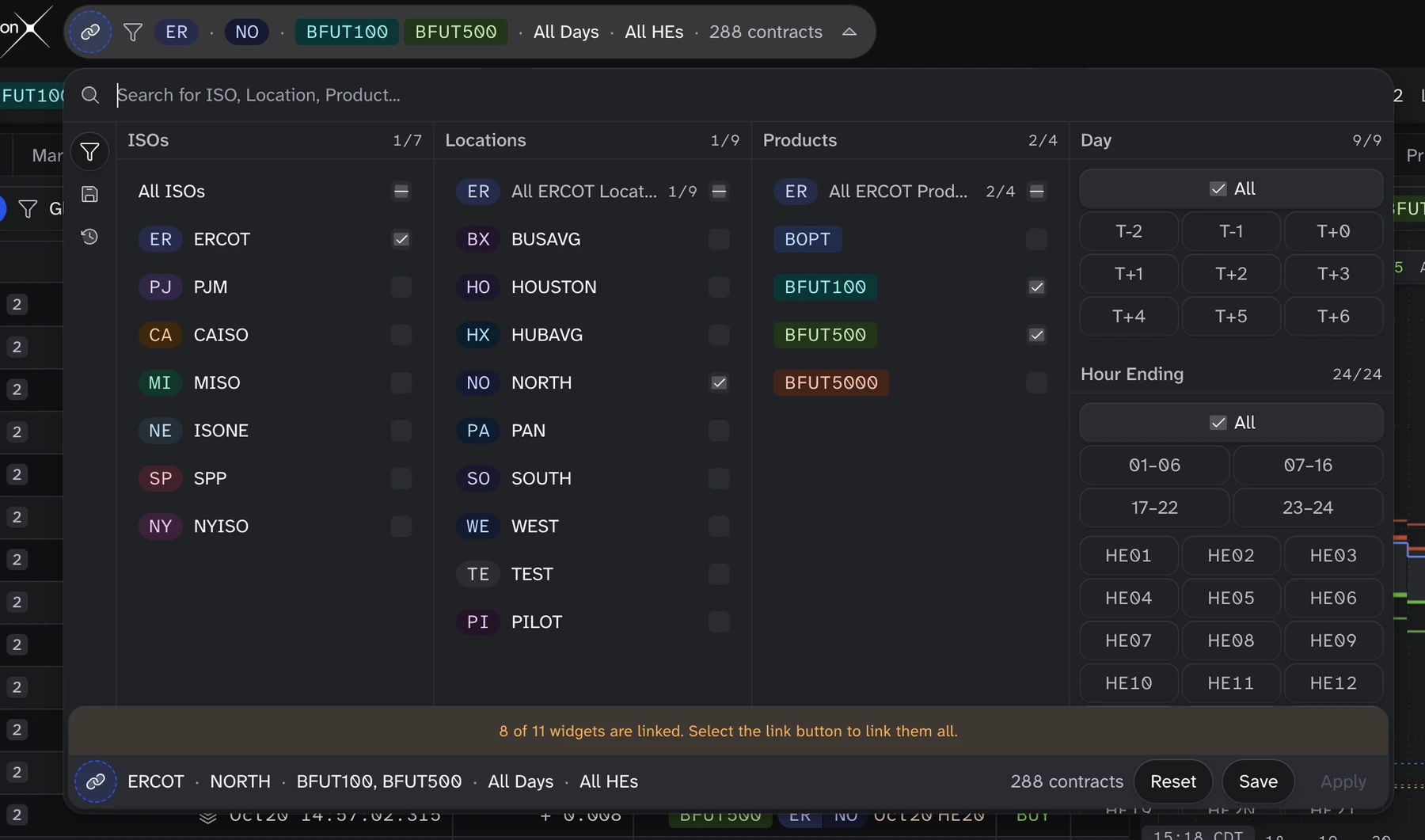
The global filter is at the top left of the header. Its summary shows your selection in this order: ISOs, locations, products, days, and hour endings, then the number of contracts that match. Click the summary to open the filter panel.
ISOs,Locations, andProducts: select or clear each item. Locations and products are grouped by ISO.Day: select trade dates fromT-2toT+6.T+0is today.Hour Ending: select single hours (HE01toHE24) or a block of hours, such as07-16. The hours you select apply to every day you select.
Use the search field to find an ISO, location, or product by name. Your changes do not take effect until you click Apply. If you close the panel without applying, your changes are discarded. Reset clears your selection in the panel. Save stores the selection as a named filter. Use the icons on the left side of the panel to switch between the filter builder, your Saved filters, and your Recent filters.
Widget filters
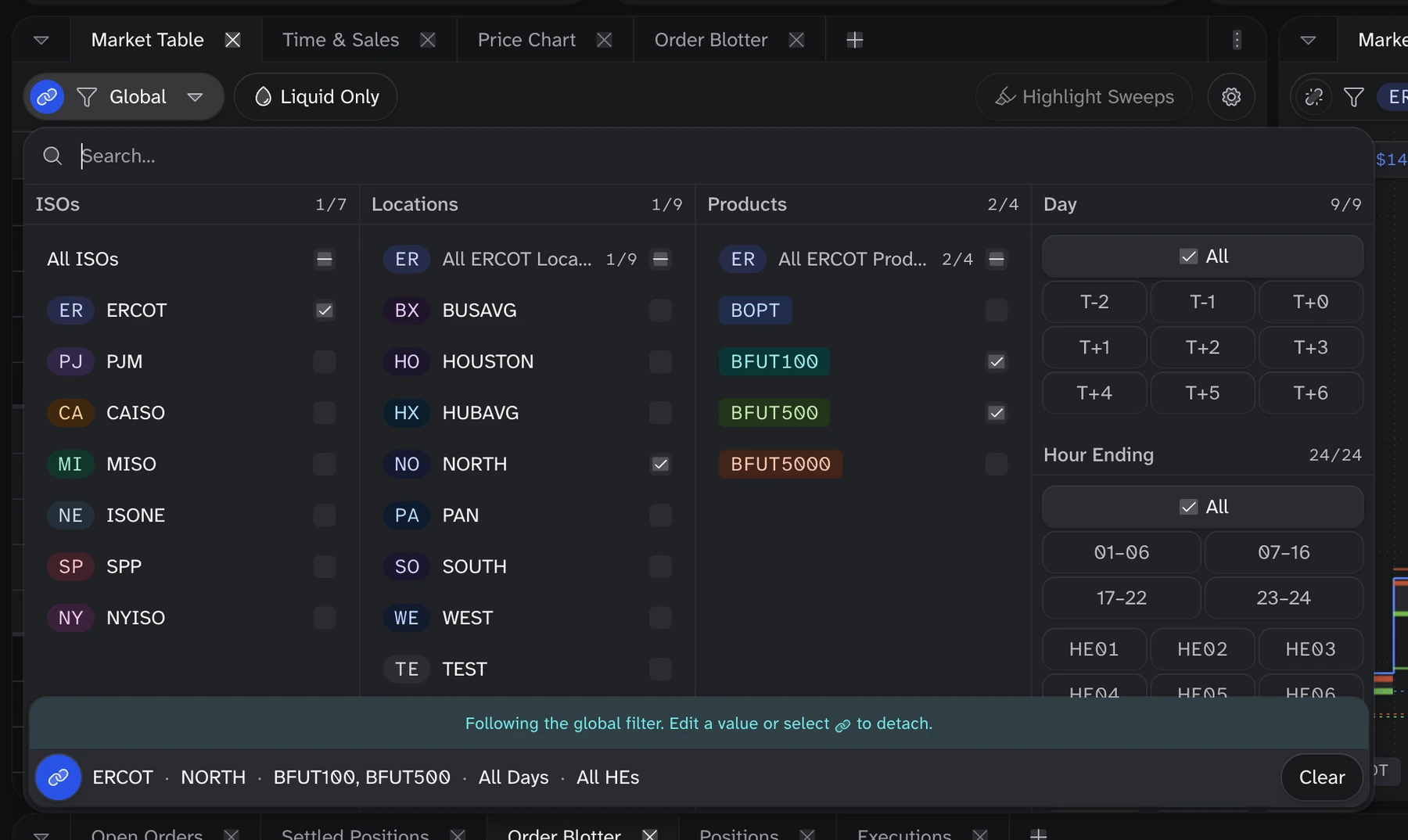
Each widget has its own filter at the left of its toolbar. When the link button next to it is on, the widget follows the global filter and its filter reads Global. Click the filter to open the same columns as the global filter, limited to the ones that widget uses.
- Changes in a widget filter take effect immediately. There is no Apply step.
- Your first change detaches the widget from the global filter. The widget then keeps its own selection when the global filter changes.
- To follow the global filter again, click the link button.
Clearclears every selection so you can start a new one.
Widgets that show one contract at a time, such as the Price chart, keep their own selection by default. When some widgets are not linked, the global filter panel shows how many are linked. Click the link button in that panel to link all of them. The Market table also has a Liquid Only toggle, which shows only contracts with resting liquidity.
Order Entry panel
The Order Entry panel is where you submit bids and offers. Click buy or sell on a contract to add a draft order, or open the panel with the Order entry button in the header. Draft orders stay in the panel until you place them. The New Orders tab also accepts a CSV file of orders, and the Cancel-Replace tab changes orders that are already working. See Placing Your First Order for a step-by-step walkthrough.
Open Orders, Executions & Order Blotter
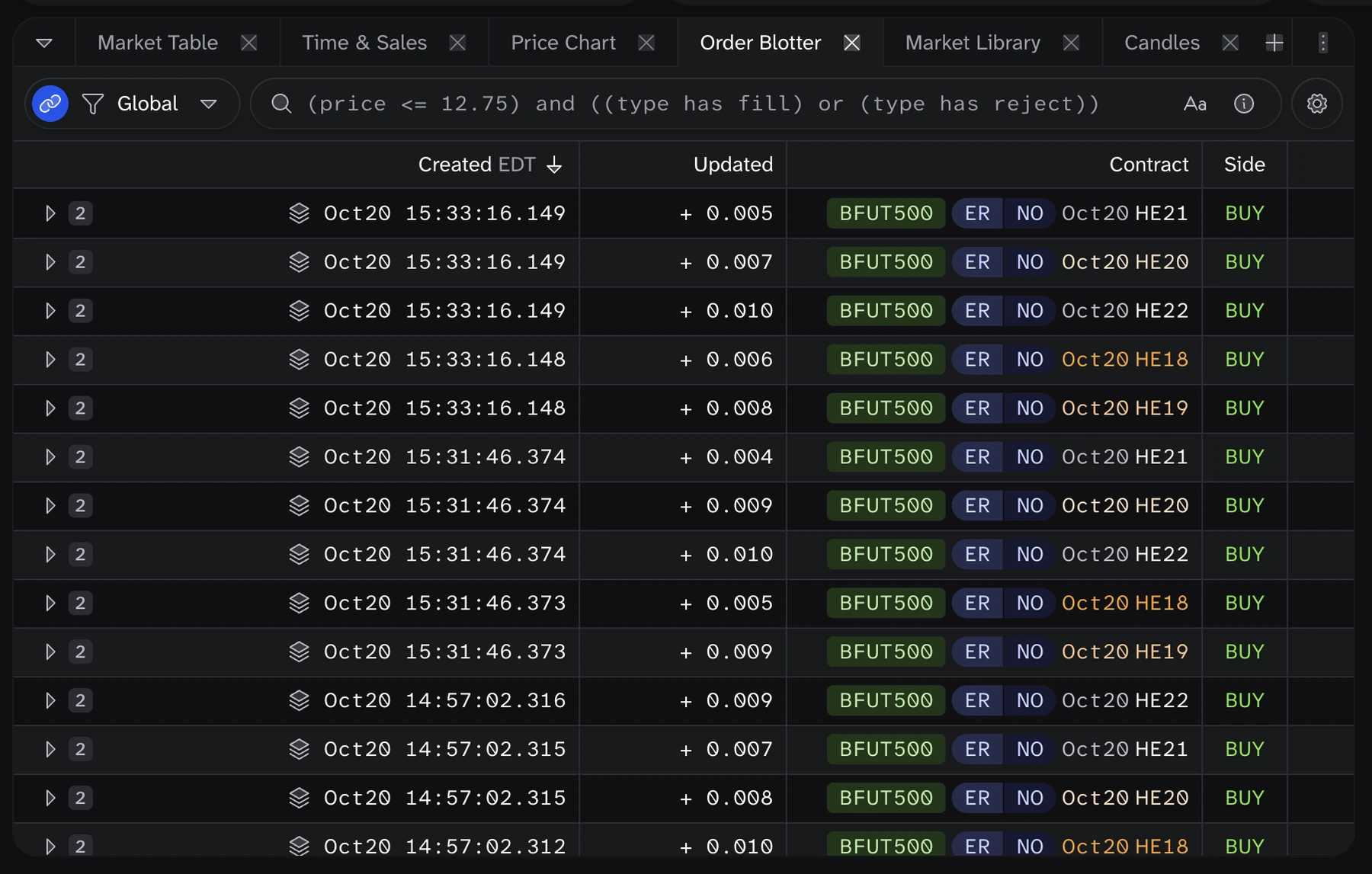
The Open Orders tab shows your open orders, the Executions tab shows your filled orders, and the Order Blotter shows all orders and their status. Orders sent from the Legger show the Legger mark in the Created column.
Positions & settled positions
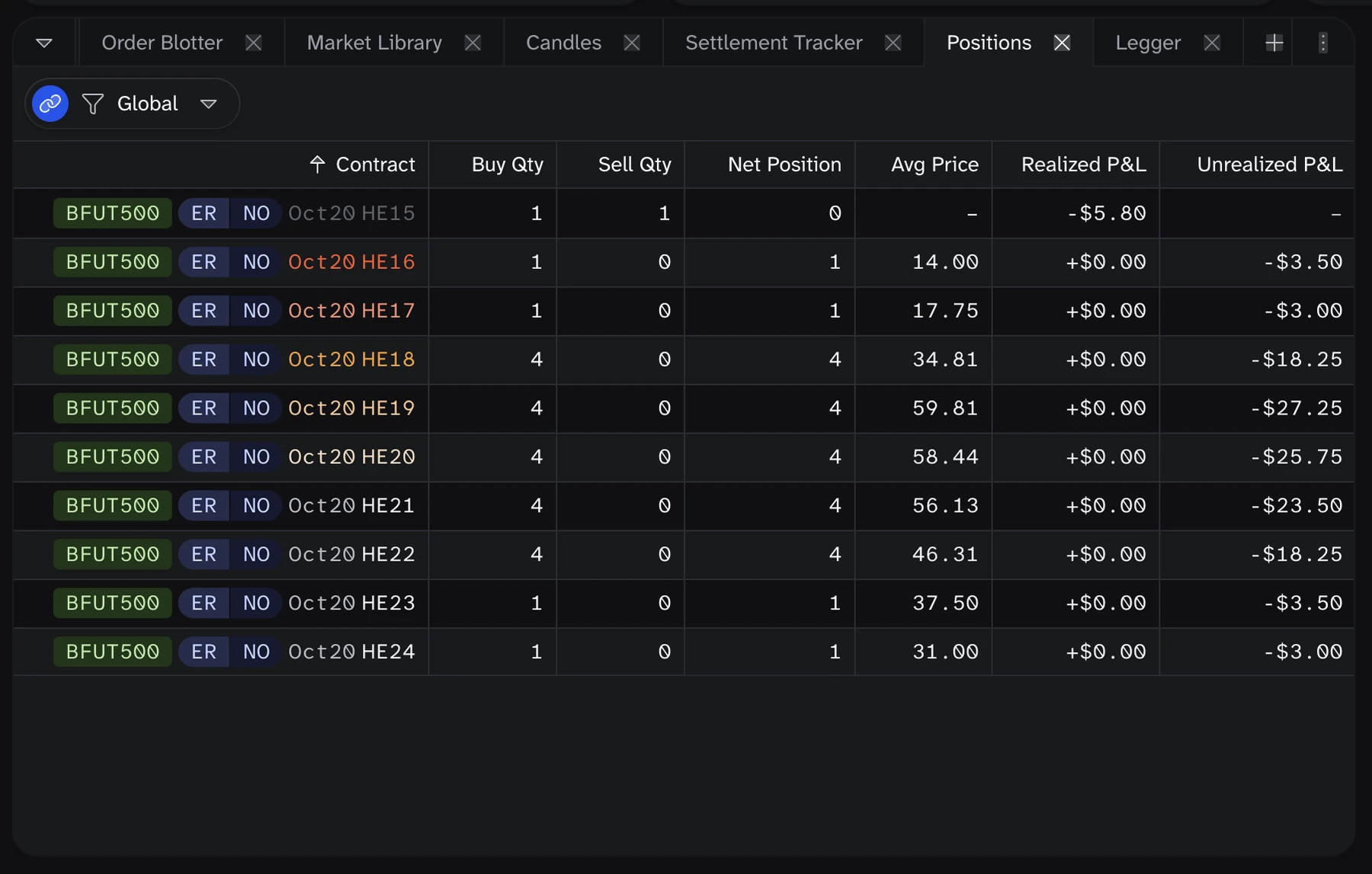
The Positions tab shows your fill quantity per contract, net position, average price, and realized P&L. The Settled Positions tab shows your settled positions.
Price chart
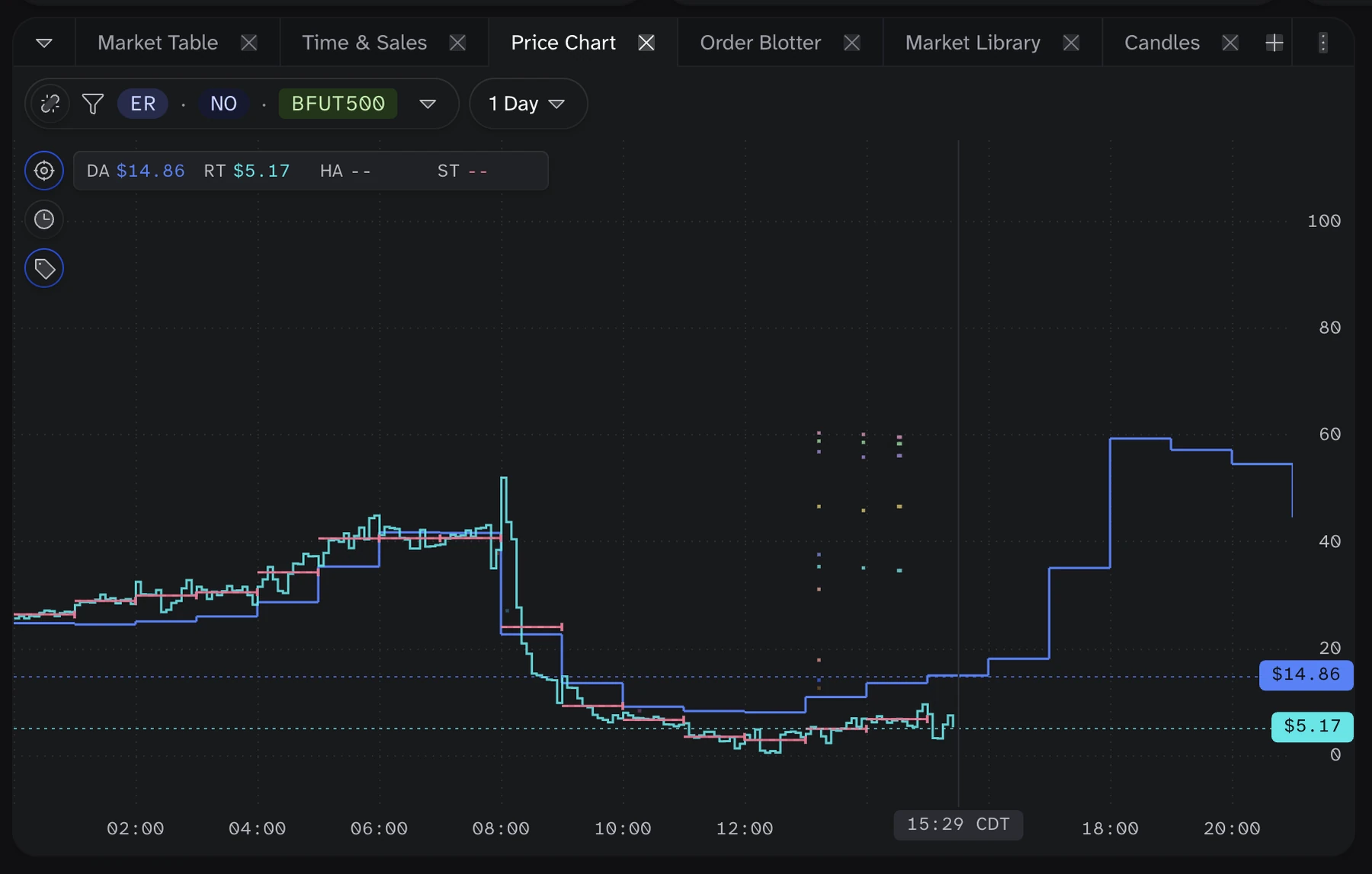
The Price chart shows the day-ahead, real-time, and settled prices, per hub.
Time & Sales
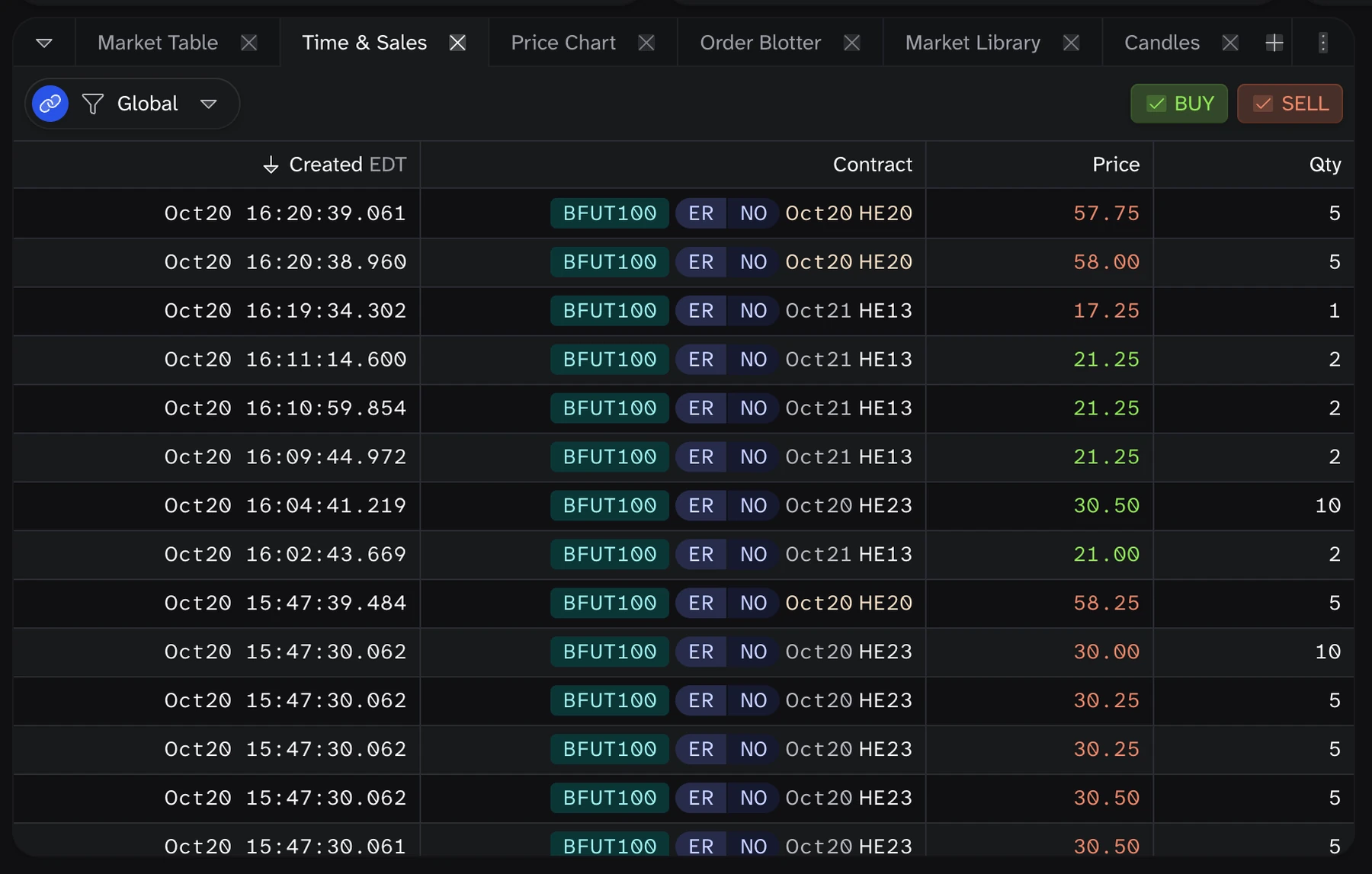
The Time & Sales view is our version of a ticker-tape, showing all executed trades on the platform per hub.
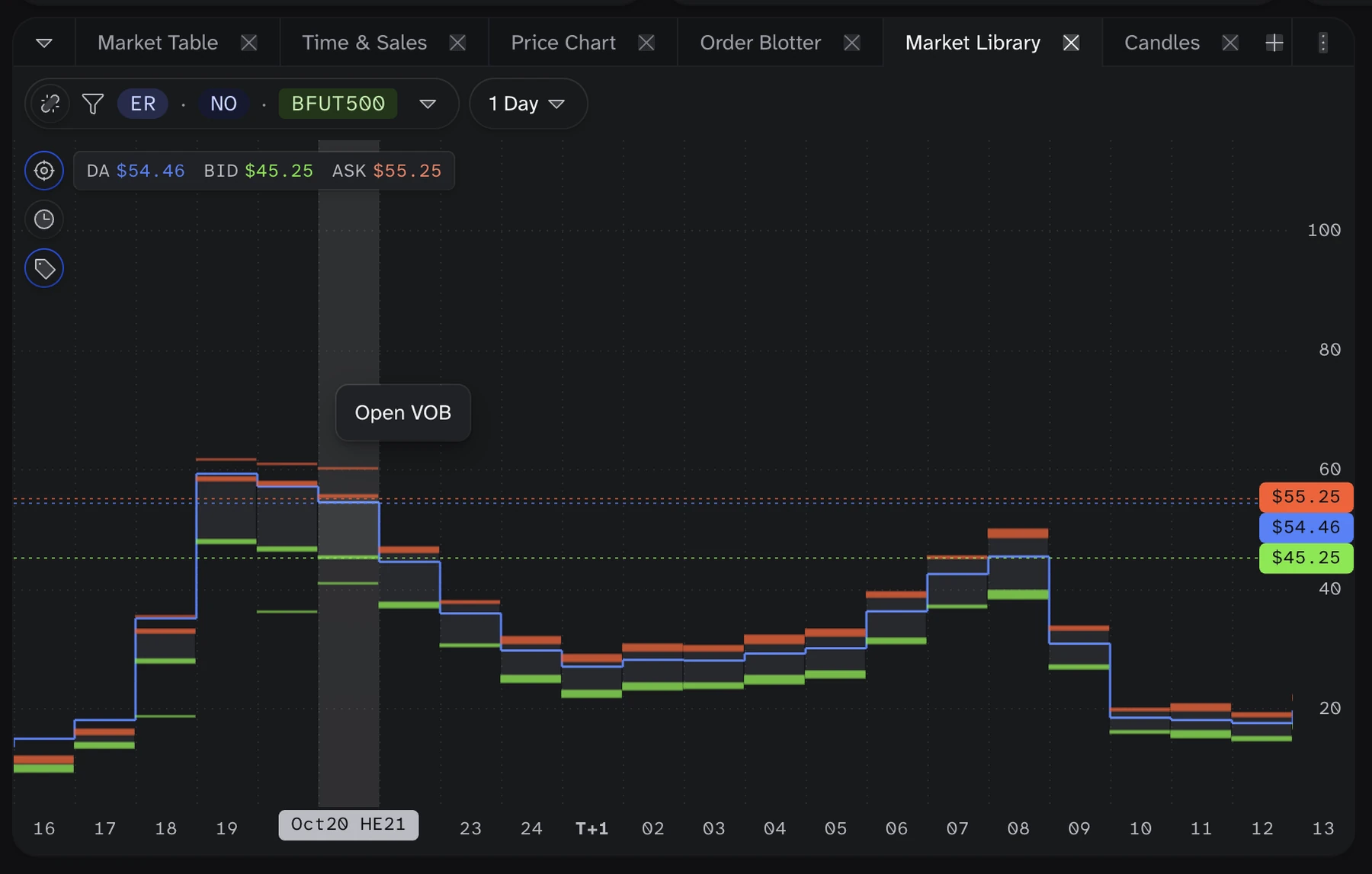
Market Library
The Market Library charts the best bid and offer for every hour of one product at one hub, next to the day-ahead price. Use it to compare prices across the day at a glance.
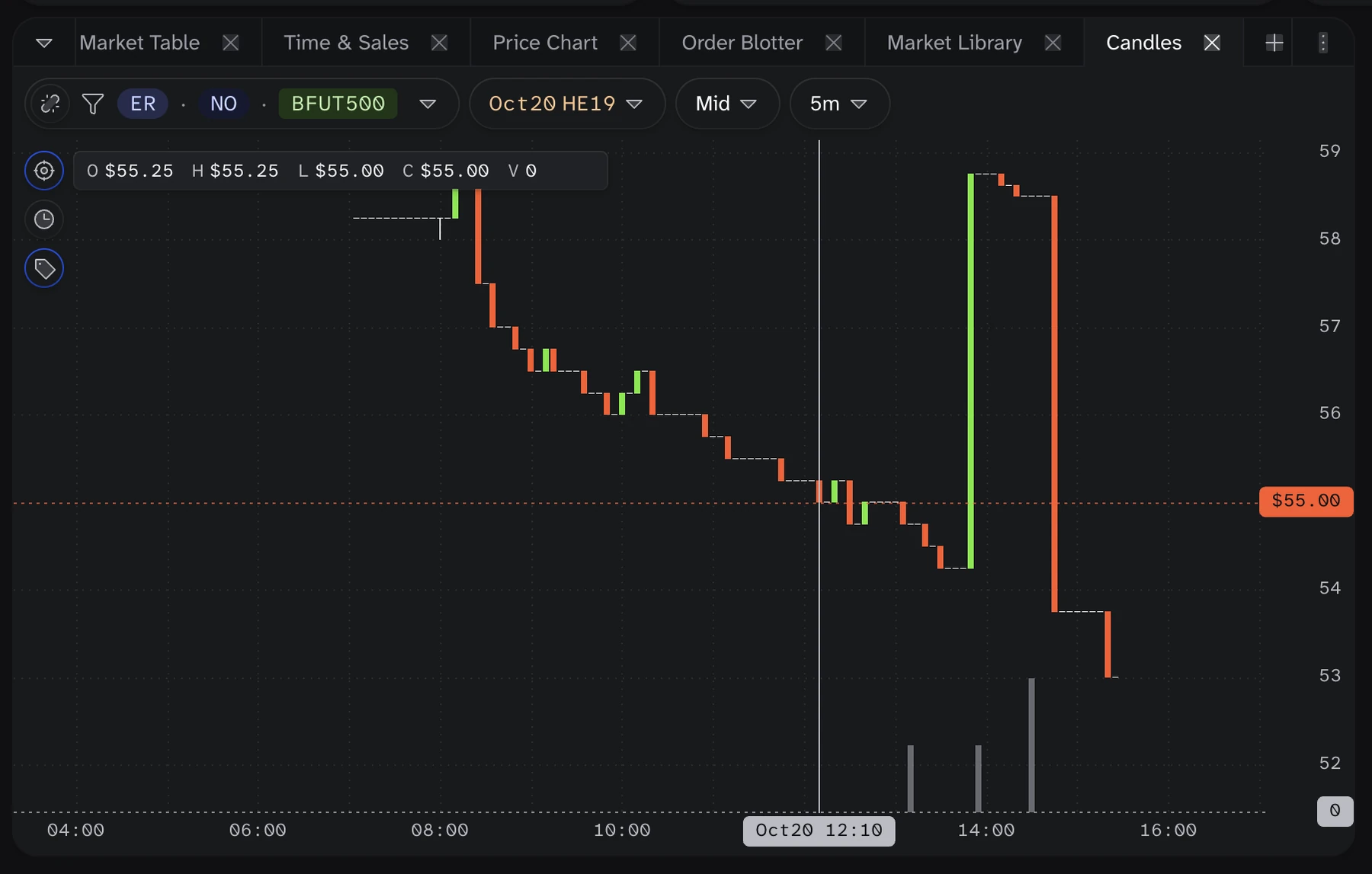
Candles
The Candles widget charts the trades and volume of one contract. Choose the contract, the price source, and the candle interval (1m, 5m, or 1h) in the widget toolbar.
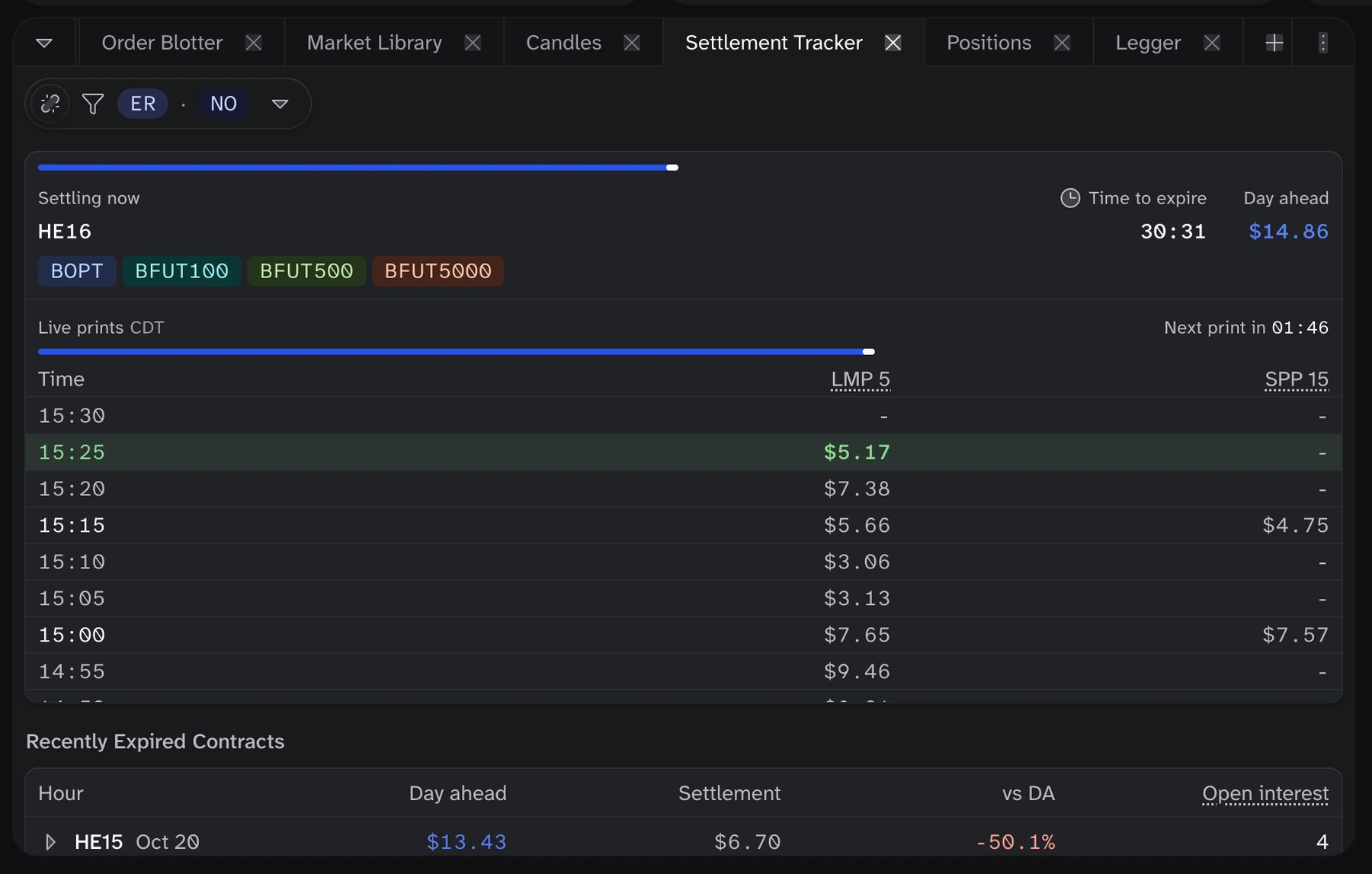
Settlement Tracker
The Settlement Tracker follows the hour that is settling now at one hub. It shows the time to expiry, the day-ahead price, and each live price print as it arrives. Below, Recently Expired Contracts lists the last hours with their day-ahead price, settlement price, difference from day-ahead, and open interest.
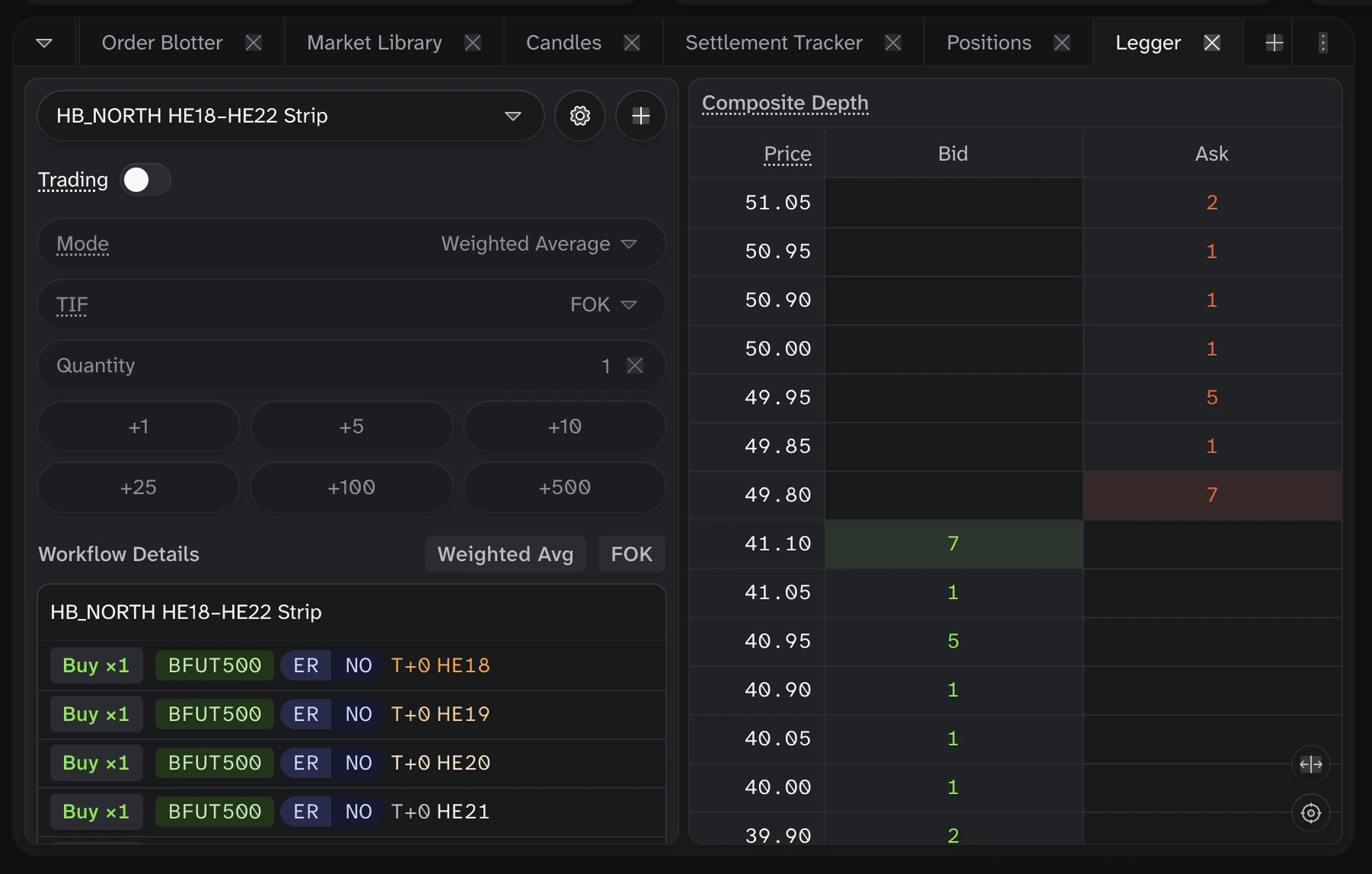
Legger
The Legger groups related contracts into a reusable workflow, then submits orders for all of its constituent legs with one click. Spread and strip wizards build the two most common hedging structures for you, and the Custom Wizard exposes every leg, ratio, and side. See the Legger Widget Guide for a full walkthrough.
Balances
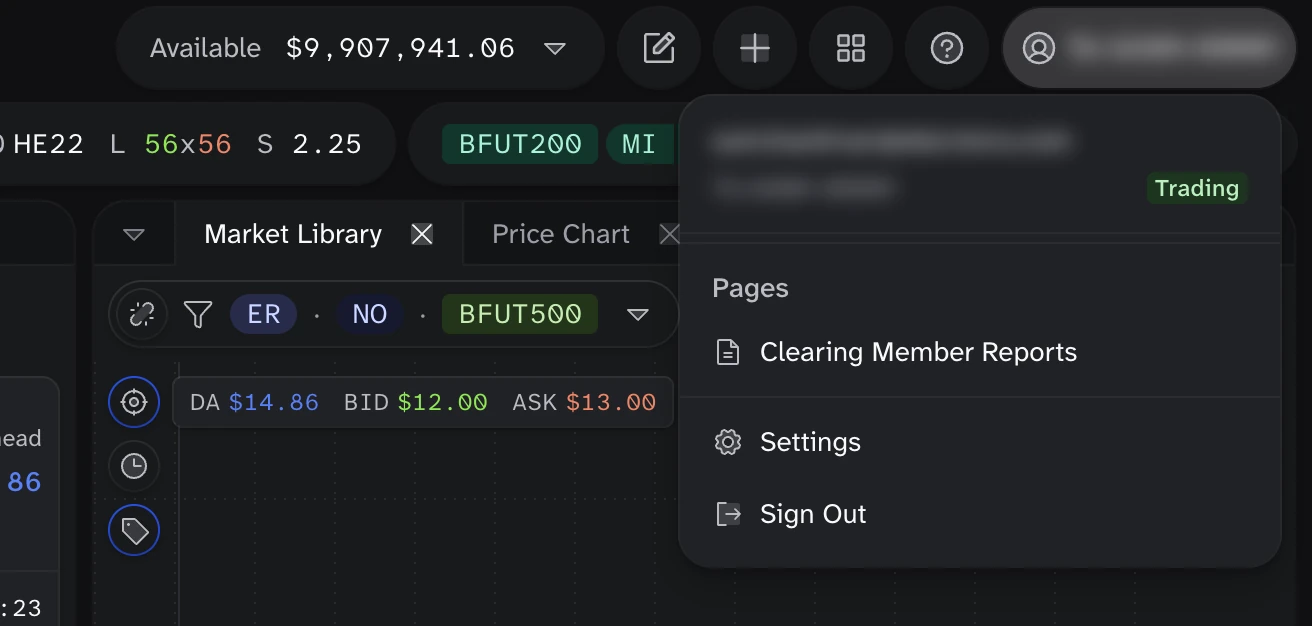
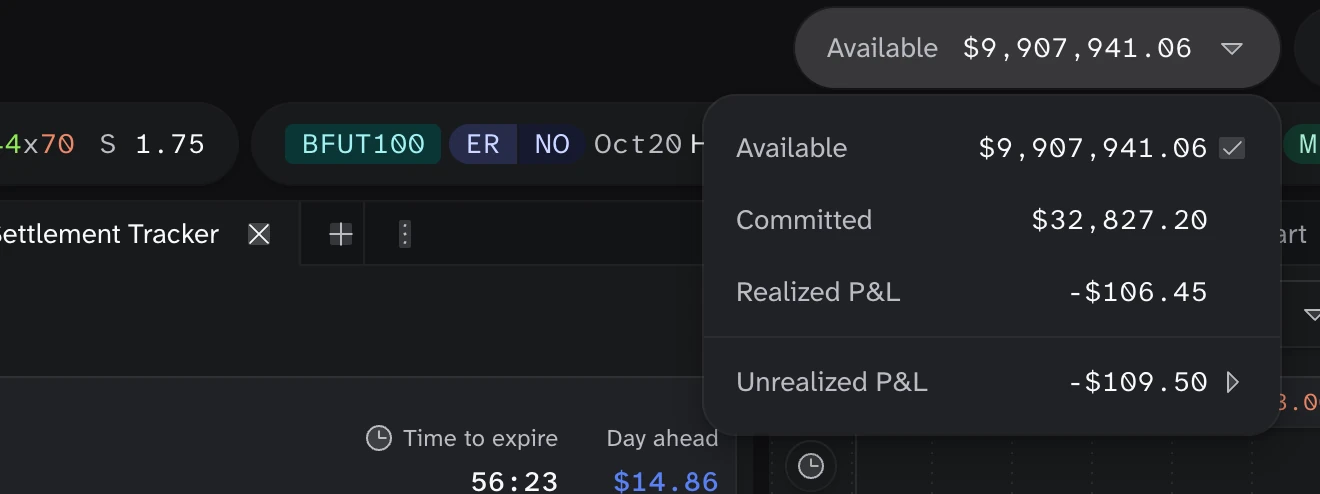
In the top right you will find your balances. The header shows one figure at a time. Click it to see all four, and select the one to show in the header:
Available: your cash immediately accessible for placing new trades; your net available funds after accounting for any committed collateral and open orders.Committed: funds currently reserved for trading activities.Realized P&L: today's realized P&L.Unrealized P&L: the value of your open positions. Choose the price it is valued at from its submenu.
Hot contracts
Below the header, the hot contracts bar shows which contracts are most active. Each card shows the contract, its resting liquidity on each side of the book (L, bid x ask), and its spread (S). Hover a card to see its last price and volume. Click a card to go to that contract in the Market table.

Account settings
In the top right you will find your account menu. Open Settings for your trading, alert, email, and display preferences, and for your Market Data API key. If you are an Operations User, this is also where you download the EOD Clearing Member reports.